
22 min read
Text Effects with Layer Styles
Drop shadow, stroke, outer glow, gradient overlay and bevel — and filling text with a photo using a clipping mask.
Layer Styles
To add a style: select the layer, then click fx (Add a layer style) at the bottom of the Layers panel, or choose Layer → Layer Style, and pick an effect. Adjust it in the Layer Style dialog and click OK. The effects are listed under the layer; click the eye next to each to switch it on or off, and double-click to edit.
| Common layer styles | ||
|---|---|---|
Text Filled with a Photo (Clipping Mask)
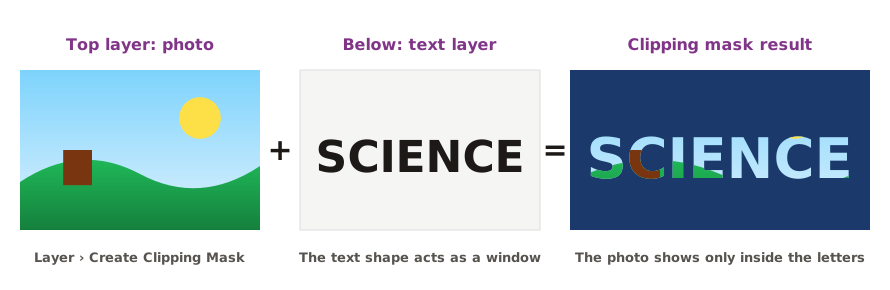
- Type a word in a very bold font (for example SCIENCE in Montserrat Black).
- Place the photo on a layer directly above the text layer.
- Choose Layer → Create Clipping Mask (or Alt-click the line between the two layers).
- The photo now appears only inside the letters. Move or scale the photo to show the best part; the text stays editable.
- Add a Stroke or Drop Shadow to the text layer to define the letters.
Practice
White text is hard to read over a light part of a photo. Which style helps most?
More lessons in Adobe Photoshop · Next: Building the Poster Step by Step · Previous: The Type Tool